
Let’s be honest.
Some gear looks cool on a desk and then mostly just sits there making you feel productive.
The Elgato Stream Deck + is dangerously close to looking like one of those products.
But in this case, it actually does something.
So here’s the real question:
Is the Elgato Stream Deck + actually worth buying, or is it just fancy desk candy for streamers who like buttons a little too much?
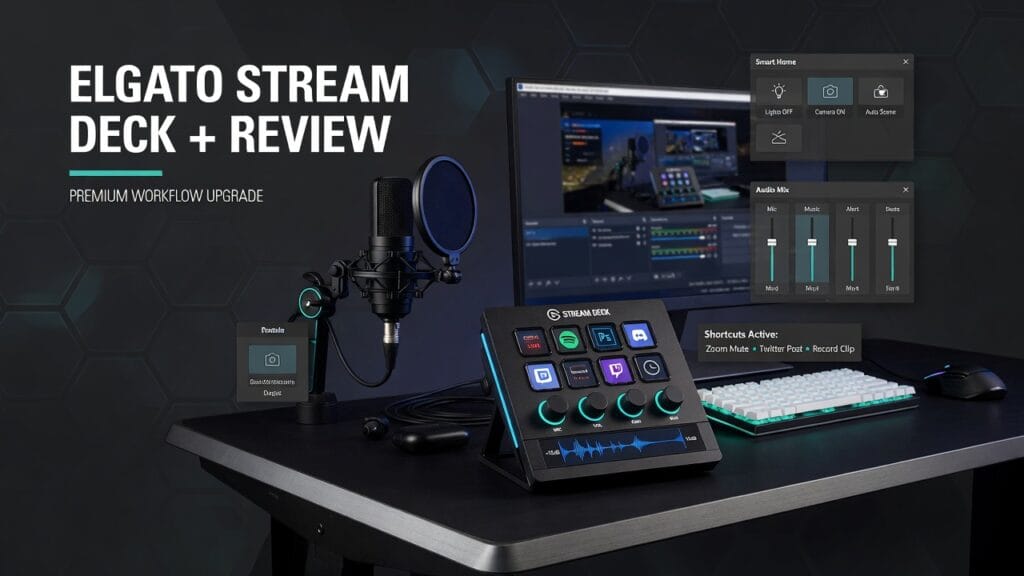
Short answer: yeah, it’s worth it for a lot of creators. Elgato describes the Stream Deck + as iconic Stream Deck tech with customizable LCD keys, dials, and a touch strip, built to be an audio mixer, studio controller, and production console — basically a control surface for whatever workflow you want to build.【turn416443view0†L301-L307】
The quick answer
If you want the blunt version first:
- Yes, the Stream Deck + is worth it if you actually create stuff regularly and want faster control over your setup.
- It makes the most sense for streamers, YouTubers, podcasters, editors, and productivity freaks who like one-touch shortcuts.
- It’s probably not worth it if you barely use shortcuts now and mostly just want something that looks expensive next to your keyboard.
That’s the clean version.
What the Stream Deck + actually is
The Stream Deck + is a desktop controller with:
- customizable LCD keys
- four dials
- a touch strip
- deep app and plugin support through Elgato’s software and marketplace【turn416443view0†L301-L307】【turn416443view2†L669-L691】
In normal-person language:
It’s a control board for people who are tired of digging through menus, clicking through software, and doing the same dumb repetitive stuff every day.
And honestly? That’s why it has a real lane.
What it does well
1. It gives you real control, not just cute buttons
This is the big thing.
A lot of people hear “Stream Deck” and think it’s just for live stream scene switching.
That’s way too small.
Elgato positions the Stream Deck ecosystem around controlling apps, hardware, and games, with support for plugins, profiles, and even a virtual Stream Deck on screen.【turn416443view2†L669-L691】
So yes, you can use it for streaming.
But you can also use it for:
- launching apps
- triggering shortcuts
- editing workflows
- meeting controls
- audio control
- automation
- creative software shortcuts
- and general “stop making me click ten things” energy
That’s a lot more useful than it sounds on paper.
2. The dials are what make this version interesting
This is what separates the Stream Deck + from the regular button-only versions.
The four dials are not just there for decoration. Elgato emphasizes that they can be used for things like adjusting audio, cycling through controls, and handling stacked actions more fluidly.【turn416443view4†L549-L569】
That matters because some actions are better as a tap, but some are way better as a turn.
Like:
- volume
- brightness
- scrubbing
- adjusting levels
- tweaking settings
That makes the Stream Deck + feel more like a real control surface and less like just a macro pad with good branding.
3. It’s especially strong for audio control
Elgato leans hard into the audio angle here, and for good reason.
The product page calls the Stream Deck + “your audio station” and says it gives you hands-on control for audio sources while unlocking Wave Link mixing software.【turn416443view4†L410-L424】【turn416443view4†L549-L555】
That’s a big deal for:
- streamers
- podcasters
- content creators
- anyone juggling mic, game, music, Discord, browser audio, and general chaos
If your setup has a bunch of audio sources, this thing starts making way more sense.
4. Smart Profiles are actually useful
This is one of those features that sounds nerdy until you use it.
Elgato says Smart Profiles can automatically switch your action layouts as you jump between apps.【turn416443view4†L541-L547】
That means:
- editing layout in your editing app
- stream controls in OBS
- meeting controls in Zoom
- audio controls in Wave Link
That’s slick.
Because the best gear is the stuff that quietly adapts to your workflow instead of making you babysit it all day.
5. The ecosystem is a real advantage
Elgato’s software includes:
- Marketplace integration
- plugins
- profiles
- Virtual Stream Deck
- third-party integrations【turn416443view2†L669-L691】
That matters a lot.
Because the hardware alone is only part of the value. The real power is in how many different tools and workflows it can hook into.
That’s why people get weirdly loyal about these things.
Who it’s best for
The Stream Deck + makes the most sense for:
- streamers
- podcasters
- YouTubers
- editors
- productivity-heavy creators
- people with multi-app workflows
- creators who want fast control over audio, apps, and repetitive tasks
Basically:
if your desk setup does a lot, this thing starts to make sense fast.
What sucks about it
Now for the part where we stop pretending everything is perfect.
1. It’s only worth it if you’ll actually use it
This is the biggest truth.
If you are the type of person who never uses shortcuts, doesn’t automate anything, and is perfectly happy clicking through menus forever, this may not change your life.
The Stream Deck + rewards people who actually build workflows.
If you won’t do that, it can absolutely become a very pretty desk object.
2. There’s still a setup curve
Elgato says setup is drag-and-drop and easier than a lot of people expect, and that’s true to a point.【turn416443view4†L534-L539】
But let’s be real:
you still need to decide what you want it to do.
That means:
- assigning actions
- organizing layouts
- setting up profiles
- deciding what goes on keys vs dials
It’s not hard exactly, but it does ask for a little effort.
3. A lot of the value depends on your ecosystem
If you use:
- OBS
- Wave Link
- Discord
- editing software
- productivity apps
- plugins
then great.
If your workflow is super simple, then some of the power here goes to waste.
Extra expandability is cool
Elgato also pushes optional accessories like:
- XLR Dock
- USB Hub
- Network Dock【turn416443view3†L518-L530】【turn416443view3†L727-L730】
That’s interesting because it gives the Stream Deck + some room to grow. The XLR Dock especially is a pretty smart add-on if you want to turn it into more of an audio station.
So yeah, there’s a real ecosystem play here.
Compatibility stuff
Elgato lists compatibility with Windows and macOS, with a recommended USB 3.0 (or later) Type-C connection.【turn416443view3†L707-L723】
That’s straightforward, which is good.
Because if something this workflow-focused had weird setup drama, that would be embarrassing.
So is the Elgato Stream Deck + worth it?
Yeah — for the right person, absolutely.
It’s worth it for:
- creators with real workflows
- people who juggle multiple apps
- streamers
- podcasters
- users who want better audio control
- anyone who likes making repetitive tasks less annoying
It’s probably not worth it for:
- casual users
- people who barely use shortcuts
- anyone hoping it will magically fix bad organization and lazy workflow habits
My honest verdict
The Stream Deck + is not just a gimmick.
Not because it has shiny keys.
Not because dials automatically make everything cooler.
And definitely not because every creator needs to turn their desk into NASA mission control.
It’s strong because it combines customizable keys, dials, touch controls, audio workflow tools, plugins, and smart app-based profiles into something that can genuinely speed up the right setup.【turn416443view0†L301-L307】【turn416443view4†L541-L555】【turn416443view2†L669-L691】
So here’s the clean verdict:
Use the Stream Deck + if:
- you create content regularly
- you want better control over apps and audio
- you like automation and shortcuts
- you want one device that can do a lot of little useful things well
Skip the Stream Deck + if:
- your workflow is super simple
- you won’t spend time setting it up
- you just want something cool-looking on your desk and nothing more
Final thoughts
The Elgato Stream Deck + is one of those products that sounds more extra than it actually is.
Once you understand what it can really do, it starts making a lot of sense.
If your workflow is busy, layered, and a little chaotic, this thing can genuinely help.
If you want, I can do the third one next:
Apple Studio Display Review — same format, image prompt first, then the full review.